
Getting started
Welcome to Folder Rules
Folder Rules watches the folders you choose and tidies them by your own rules. As files arrive it can move, rename, sort, tag, archive or upload them, quietly, from the notification area.
Each rule belongs to a watched folder and says if a file looks like this, do these things. For example:
- If a file in Downloads is a PDF or Word document, sort it into
Documents\2026. - If a screenshot arrives, rename it to the date and time it was taken.
- If an installer has been in Downloads for 30 days, move it to an "Installers" folder.
Rules run by themselves whenever something new appears, and you can always test a rule, see what it would do without changing anything, and undo what it did.
Getting started
Free and Pro
Folder Rules is free to use for as long as you like. Folder Rules Pro is an annual subscription that unlocks everything else. Features that need Pro have a PRO badge in the app.
| Free FREE | Pro PRO | |
|---|---|---|
| Watched folders | 2 | Unlimited |
| Active rules | 3 | Unlimited |
| Conditions | Name, extension, size, date added, date created, date modified, tag | Also kind, date last opened, date last matched, contents (including text in images), image metadata, download source, time window, type is folder, passes script, nested condition groups and subfolders |
| Actions | Move, copy, rename, sort into subfolder, add and remove tags, notification, pause, continue matching, ignore, log only | Also archive to .zip, unarchive, sync, upload (FTP, SFTP, WebDAV), move to Recycle Bin, PowerShell and programs, shortcuts, open with, read-only, Windows Search comments, tags from patterns, run rules on folder contents |
| Run history | 7 days, with Undo last run | 365 days, and Revert file for any action |
| Extras | Scheduled scans, Run now, dry run, test on a sample file, start with Windows, Explorer menu, five starter templates | Import and export rules, quick-add folder buttons, leftover finder, Recycle Bin cleanup, include cloud-only files |
If you have more folders or rules than the free version allows, or a rule uses a Pro feature, they're kept with a PRO badge and simply don't run. Nothing is deleted, and they start working again as soon as Pro is active. See Folder Rules Pro for the 14-day trial and subscription.
Getting started
System requirements
- Windows 11, or Windows 10 version 2004 or later, 64-bit
- The Microsoft .NET 10 Desktop Runtime (free). Setup downloads and installs it for you if it's missing.
- About 50 MB of disc space, plus the .NET runtime if it isn't already installed
- An internet connection to install the .NET runtime, for Pro activation and its weekly check, and for uploads. Rules themselves work offline.
- For text in images (OCR): a Windows OCR language, which most Windows installations already have for their display language
Getting started
Quick start
- Install Folder Rules and let it start. Its icon appears in the notification area by the clock.
- In the main window, choose Add folder and pick a folder to watch, such as Downloads.
- Choose Templates and pick Downloads sorter, or choose New rule to make your own.
- In the rule editor, use Test on a sample file to check what the rule would do, then choose Save.
- Turn on Dry run if you'd like to watch what happens for a while before anything moves. Rules then only record what they would do in Run history.
From then on Folder Rules works by itself. Closing the window keeps it running in the notification area.
Installation
Installing Folder Rules
- Download
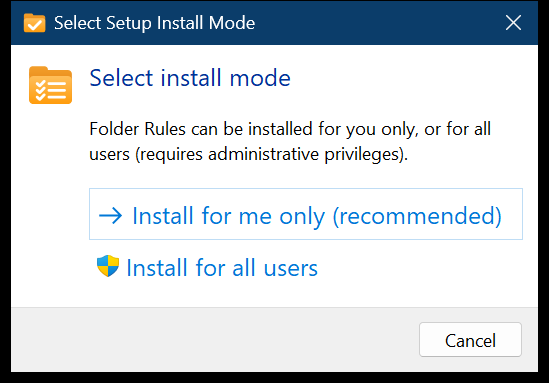
FolderRules-Setup-1.0.0.exefrom the Clarke Foundry website and open it. - Choose Install for me only (recommended). This needs no administrator permission and installs into your own user folder. Choose Install for all users only if everyone who signs in to this PC should have it; Windows then asks for permission.
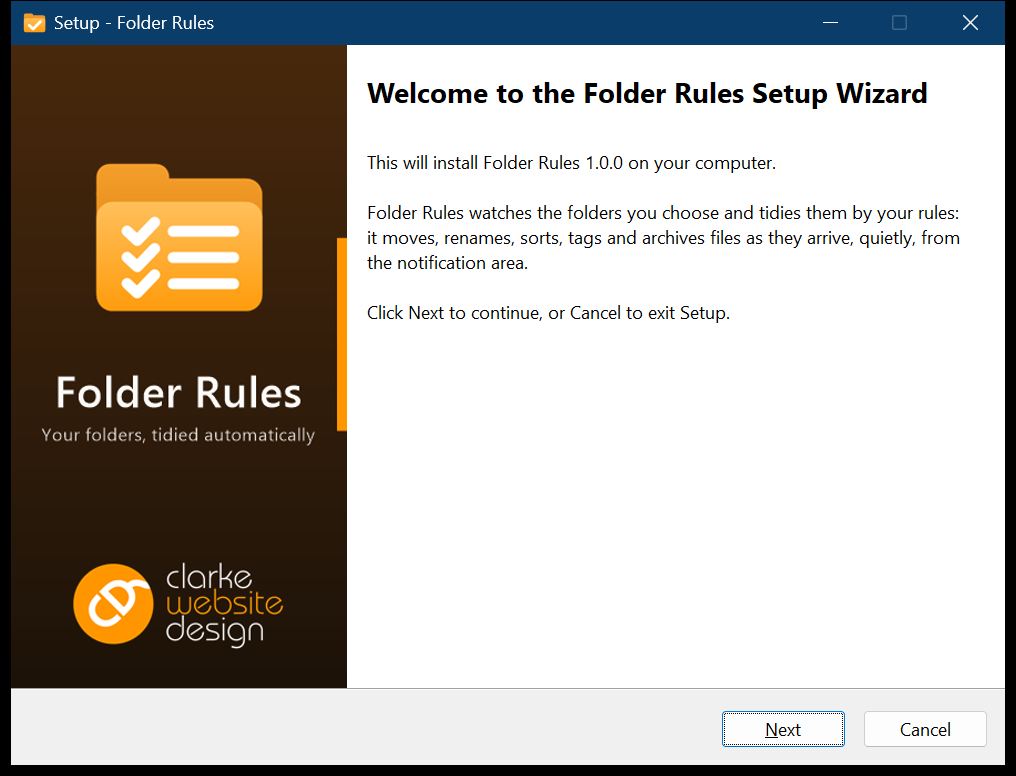
- Choose Next on the welcome page.
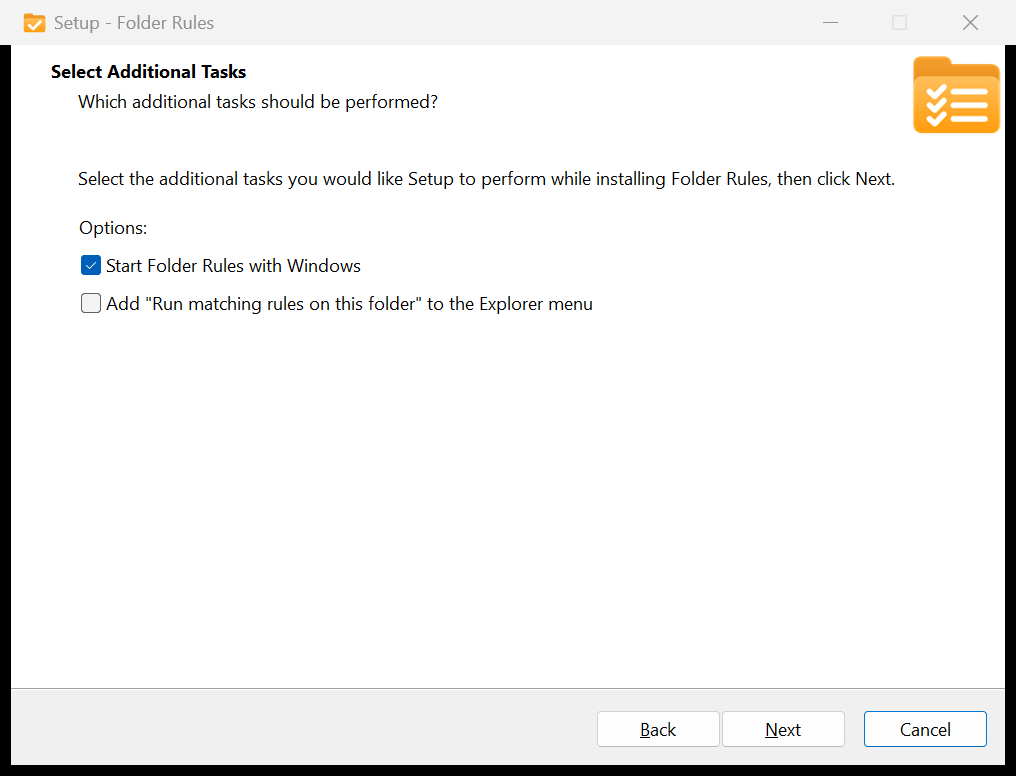
- Choose your options, then Next and Install:
- Start Folder Rules with Windows (ticked): Folder Rules starts in the notification area when you sign in, so your rules keep working.
- Add "Run matching rules on this folder" to the Explorer menu: adds the Explorer menu item. You can change both later in Settings.
- If the .NET 10 Desktop Runtime isn't on your PC, setup downloads it from Microsoft (about 60 MB) and Windows asks for permission to install it, as it's shared by everyone on the PC.
- Leave Start Folder Rules now ticked and choose Finish.
Folder Rules is installed in %LOCALAPPDATA%\Programs\Folder Rules (or Program Files for all users), with a Start menu entry called Folder Rules.
Installation
Updating
To update, download the new setup and run it. It closes Folder Rules if it's running, replaces the program, and keeps your folders, rules, history, settings and licence. Rules that were part-way through a run pick up again at the next scan.
Installation
Uninstalling
- Open Settings > Apps > Installed apps in Windows, find Folder Rules, and choose Uninstall.
- Folder Rules is closed, and its Explorer menu item and Start with Windows entry are removed.
- You're asked whether to keep your rules and run history. Choose Yes to keep them for a later reinstall, or No to remove them.
Uninstalling never touches the files and folders your rules looked after. A Pro licence stays on the PC so a reinstall picks it up; to move Pro to another PC, choose Deactivate this computer before uninstalling.
Running Folder Rules
Starting and stopping
- To start it, choose Folder Rules from the Start menu. If Start with Windows is on, it starts by itself in the notification area when you sign in.
- To open the window, click the Folder Rules icon in the notification area, or choose Folder Rules from the Start menu again.
- Closing the window doesn't stop Folder Rules: it keeps watching your folders from the notification area.
- To stop it completely, right-click the tray icon and choose Exit. Nothing is watched until it starts again; the next start-up scan catches anything that arrived meanwhile.
- To stop rules without exiting, choose Pause all. See When rules run.
Only one copy of Folder Rules runs at a time. Starting it again just brings the window to the front.
Running Folder Rules
The tray icon
Folder Rules lives in the notification area by the clock. If you can't see it, click the arrow there; you can drag it out so it's always visible.
What the icon shows
| Icon | Status | Meaning |
|---|---|---|
 | Watching | Rules are running and watching your folders. |
 | Working | Rules are working on files right now. |
 | Dry run | Rules only record what they would do; nothing is changed. |
 | Paused | Pause all is on: no rules run until you resume. |
 | Problem | A rule couldn't finish something recently. The details are in Run history. The icon goes back to normal after 30 minutes or after Run now. |
 | Nothing to do | There are no folders and rules that can run yet. |
The tray menu
Click the icon to open the main window. Right-click it for:
- Open Folder Rules: shows the main window.
- Pause all rules / Resume all rules: stops or restarts all automatic runs.
- Run now: runs every rule on its folder straight away.
- Help: opens this help.
- Exit: closes Folder Rules completely.
Running Folder Rules
The main window
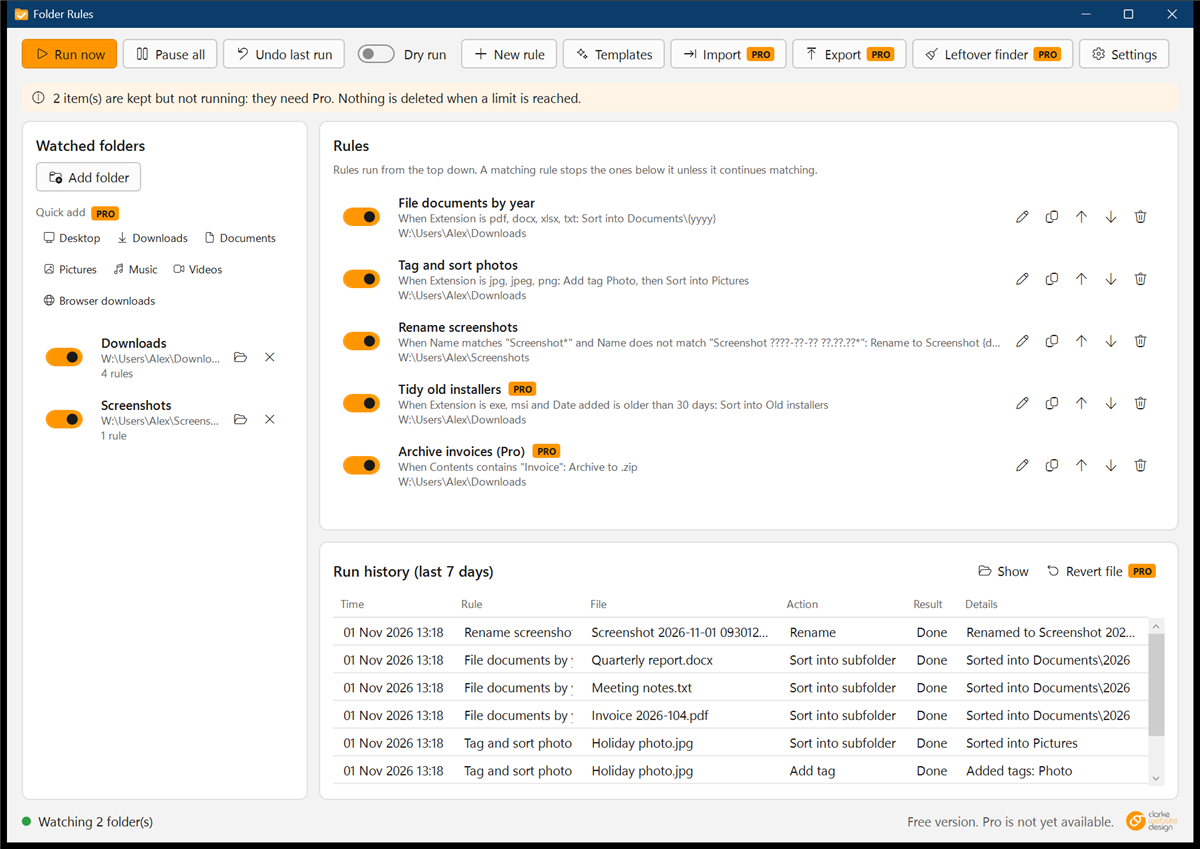
Toolbar
- Run now (F5): runs every rule on its folder straight away.
- Pause all / Resume: stops or restarts automatic runs.
- Undo last run: reverses the most recent run. See Undo and revert.
- Dry run: when on, rules only record what they would do. See Dry run and testing.
- New rule (Ctrl+N) and Templates: make a rule. See Creating a rule.
- Import and Export PRO: share rules as a file.
- Leftover finder PRO: finds folders that uninstalled apps left behind.
- Settings (Ctrl+,): options and your Pro licence.
- Help (F1): opens this help.
Panels
- Watched folders: the folders Folder Rules looks after. Select one to show only its rules; Show all rules shows them all again.
- Rules: every rule, in the order they run, with a switch to turn each one on or off.
- Run history: what the rules did, newest first.
A notice under the toolbar tells you when folders or rules are being kept but not run because they need Pro.
The footer shows what Folder Rules is doing (with a coloured dot matching the tray icon), your licence status, and a link to the Clarke Design website. In a narrow window the folders panel moves above the rules. Folder Rules follows your Windows light or dark mode.
Watched folders
Adding a folder
- In the main window, choose Add folder.
- Pick the folder and choose Select Folder.
- The folder appears under Watched folders, with the number of rules it has. Now add a rule for it.
You can watch any folder you can open: on your PC, an external drive, or a network share. Each rule belongs to one folder; to treat two folders the same way, use Duplicate on the rule and choose the other folder.
- The free version watches 2 folders. A third folder is kept, shown with a PRO badge, and starts working with Pro.
- Rules look at the items directly in the folder. To include everything in its subfolders too, tick Include subfolders on a rule PRO.
- Files that were already in a folder when you add it count as added on the day they were created, so "date added is older than 30 days" rules work on them straight away.
Watched folders
Quick add buttons PRO
Under Quick add there's a one-click button for each common Windows folder: Desktop, Downloads, Documents, Pictures, Music, Videos, and Browser downloads, which is wherever your default browser (Edge, Chrome, Firefox, Brave or Vivaldi) saves downloads. Hover over a button to see the folder it adds.
Watched folders
Pausing and removing folders
- Turn a folder off with its switch. Its rules stop running until you turn it on again; nothing else changes. (In the free version a folder that's off still counts as one of your two.)
- Open it in File Explorer with the folder button.
- Stop watching it with the cross. This removes the folder from Folder Rules along with its rules, after asking. The folder and its files on disc are never touched.
- If a watched folder is moved, renamed or on a drive that isn't connected, it shows Folder not found and its rules wait until it's back.
Rules
How rules work
A rule has conditions (what to look for) and actions (what to do). When a file in the rule's folder matches the conditions, the actions run one after another.
- Rules run from the top of the list down. Once a rule matches a file, the rules below it don't look at that file, unless the rule has Stop later rules when this one matches turned off or a Continue matching rules action.
- Moving a file ends it. After Move, Sort into subfolder, Ignore or Move to Recycle Bin, no later rules see the file. Actions after them in the same rule still run, on the file's new location.
- If an action fails, for example because the file is open in another app, the rest of that rule's actions are skipped and the problem is shown in Run history. Other files carry on.
- Folders inside a watched folder are only handled by rules that ask for them, with a Type is folder or Kind is Folder condition. A broad rule such as "Name matches *" never moves whole folders by accident.
Rules
Creating a rule
- Choose New rule, or select a folder first so the rule is made for it.
- Under Rule, set:
- Name: anything that tells you what it does.
- Watched folder: the folder whose files the rule looks at.
- Dates in patterns use: which date fills in date tokens such as
{yyyy}(date added, created or modified). See Patterns. - Rule is on, Stop later rules when this one matches, and Include subfolders PRO.
- Under If, choose whether to match All of the conditions or Any of the conditions, then set up each condition: its type, how it compares, and a value. Use Add condition for more. See Conditions.
- Under Do the following, choose each action and its settings, using Add action for more and the arrows to change their order. See Actions.
- Use Choose a sample file… under Test on a sample file to check it. See Testing.
- Choose Save. If anything needs fixing, such as an empty pattern or a name Windows doesn't allow, it's listed in red above the buttons and nothing is saved until it's right.
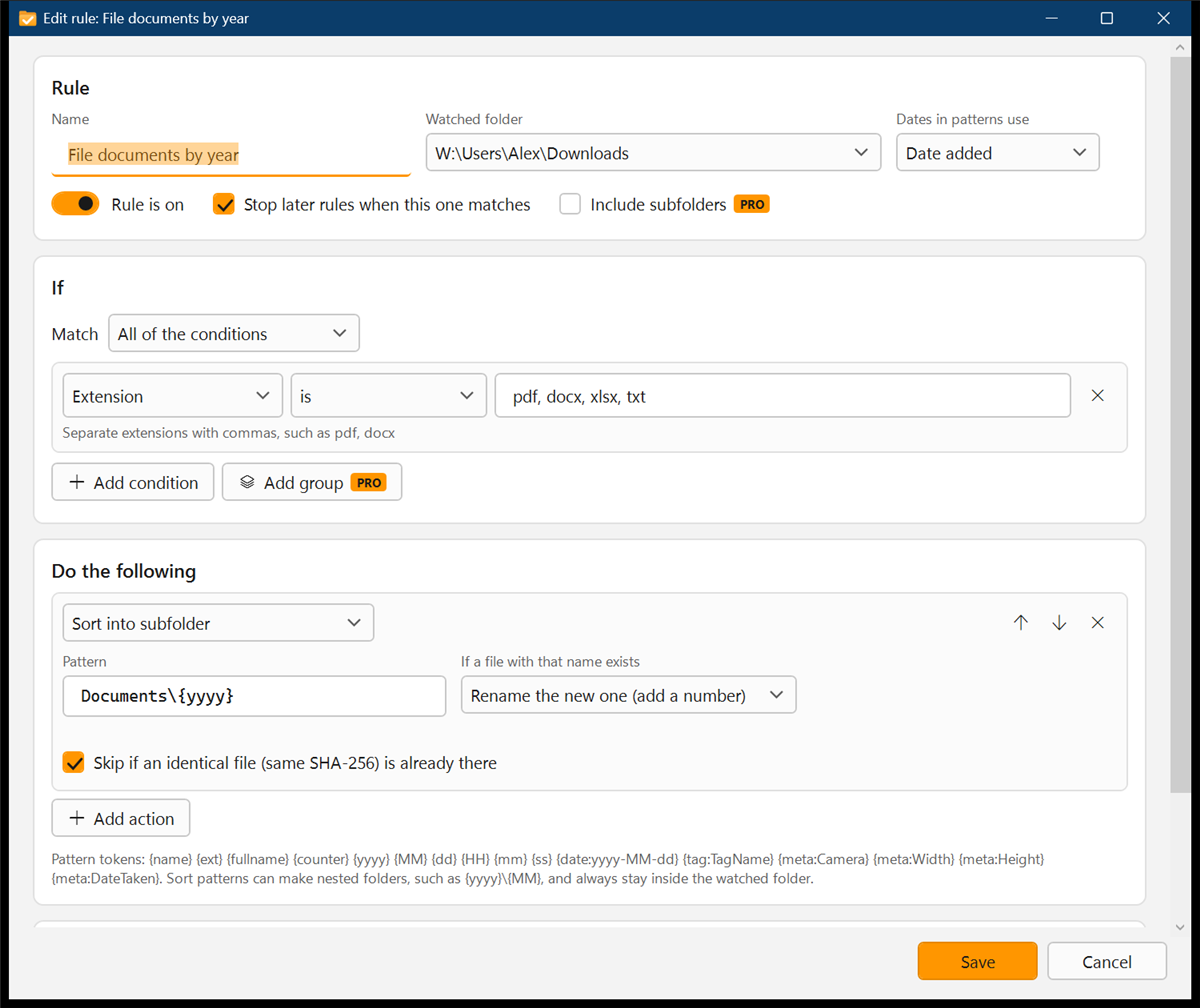
Documents\2026.If a rule uses a Pro feature while you're on the free version, the editor says so. You can still save it: it's kept with a PRO badge and runs once Pro is active.
Rules
Conditions
Each condition compares one thing about a file. The value box changes to suit the condition you choose. Text comparisons ignore upper and lower case.
| Condition | Compares with | Notes and examples |
|---|---|---|
| Name FREE | matches, does not match, matches regex, contains, does not contain, is, is not | The full name with its extension. Matches uses wildcards: * for any characters, ? for one; separate alternatives with ;, as in invoice*;receipt*. Matches regex takes a regular expression, such as ^IMG_\d{4}. |
| Extension FREE | is, is not | One or more extensions separated by commas: pdf, docx, xlsx. A dot or *. in front is fine. |
| Size FREE | is greater than, is less than | In bytes, KB, MB or GB, counted as Windows does (1 KB = 1,024 bytes). A folder's size is the total of everything in it. |
| Date added FREE | is older than, is newer than | When Folder Rules first saw the file in the folder. A number of minutes, hours or days, such as older than 30 days. |
| Date created, Date modified FREE | is older than, is newer than | The dates File Explorer shows. |
| Date last opened PRO | is older than, is newer than | The file's last access time. Windows may not update it every time a file is opened. |
| Date last matched PRO | is older than, is newer than | When a rule last matched the file. A file no rule has matched yet counts as older than any age. |
| Kind PRO | is, is not | Tick one or more: Document, Image, Video, Audio, Archive, Folder, Other. Worked out from the extension. |
| Tag FREE | has, does not have | A tag added by a rule. See Tags. |
| Source URL PRO | contains, does not contain, matches regex | Where a downloaded file came from: the download link, the page it was on, or either. Windows records this for files downloaded with most browsers. Example: contains github.com. |
| Contents PRO | contains, does not contain, matches regex, is blank | The text inside .txt, .md, .csv, .json, .xml, .html and .pdf files (PDFs by their text layer), and text read from images (.png, .jpg, .bmp, .gif, .tif) with Windows OCR. Files over the content size limit in Settings (50 MB to start with) are skipped. Word and Excel files aren't read. |
| Image metadata PRO | Date taken (is before, is after, is); Camera model (contains, is, is not); Width or Height (greater than, less than, is) | From the photo's EXIF data. Dates are entered as yyyy-MM-dd, such as 2026-06-30; sizes in pixels. |
| Time window PRO | is between, is not between | The current time, between two times such as 09:00 and 17:30, on the days you tick (no days ticked means every day). A window such as 22:00 to 06:00 runs overnight. Useful to only upload outside working hours, for example. |
| Type is folder PRO | is (a folder), is not (a file) | Lets a rule work on folders, for example with Run rules on folder contents. |
| Passes script PRO | is (passes), is not (fails) | Runs a PowerShell script or program, which decides: exit code 0 is a match. See Scripts and programs. |
Rules
Condition groups PRO
Groups let one rule mix "all" and "any". Choose Add group under the conditions: the group has its own Match setting and conditions, and can hold groups of its own. Each group counts as a single condition of the level above it.
Example: match all of: Extension is pdf, and a group matching any of: Name contains invoice, Name contains receipt. That finds PDFs that are invoices or receipts.
Use Remove group to delete a group and everything in it.
Rules
Actions
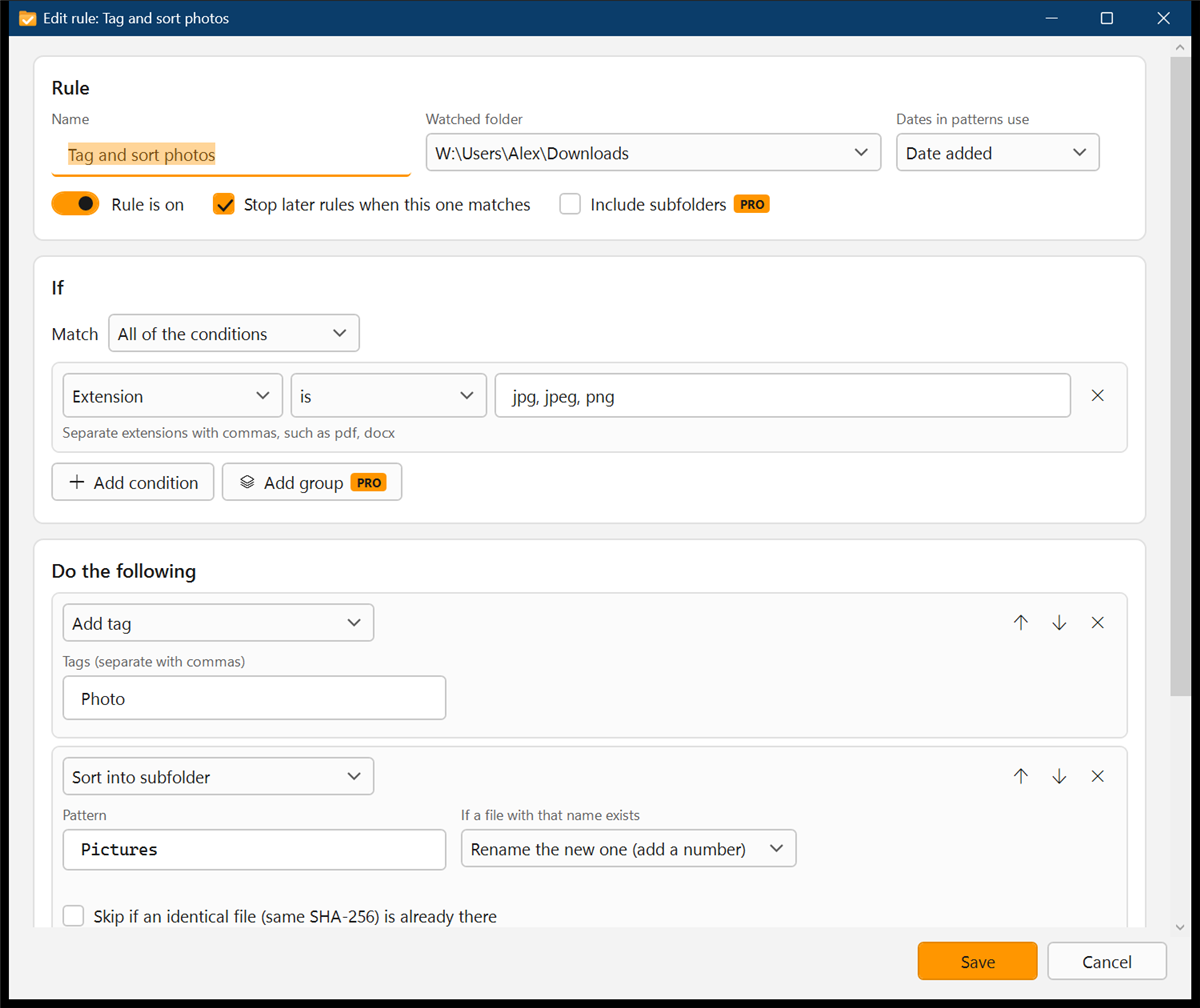
Actions run in the order shown. After one that moves the file, the next works on the file in its new place.
Free actions
| Action | What it does and its settings |
|---|---|
| Move | Moves the file to another folder (a full path, chosen with Browse…). If a file with that name exists: rename the new one (adds a number, as in report (2).pdf), replace (the old file goes to the Recycle Bin), or skip. Skip if an identical file is already there compares the files' contents (SHA-256) and leaves the file alone if the same file is already in the destination. |
| Copy | Copies the file to another folder, with the same options as Move. The original stays where it is. |
| Rename | Renames the file in place using a pattern, such as {date:yyyy-MM-dd} {name}.{ext}. If the name is taken, the same three choices as Move apply. A file that already has the right name is left alone. |
| Sort into subfolder | Moves the file into a subfolder of the watched folder made from a pattern, creating folders as needed: {ext}, Documents\{yyyy}, {yyyy}\{MM}. The result always stays inside the watched folder. |
| Add tag, Remove tag | Adds or removes one or more tags, separated by commas. See Tags. |
| Show notification | Shows a Windows notification with your text, which can use pattern tokens: Filed {fullname}. |
| Pause | Waits a number of seconds (1 to 3,600) before the next action, for apps that are still finishing with a file. |
| Continue matching rules | Lets the rules below this one look at the file too. |
| Ignore | Leaves the file alone: no more actions or rules. Put a rule with Ignore at the top to protect certain files from the rules below it. |
| Log only | Records the match in Run history and changes nothing, optionally with your own text. |
Pro actions PRO
| Action | What it does and its settings |
|---|---|
| Archive to .zip | Puts the file or folder into a .zip next to it, or in a folder you choose. Optionally sends the original to the Recycle Bin afterwards. |
| Unarchive | Extracts a .zip into a subfolder named by a pattern ({name} to start with), optionally sending the .zip to the Recycle Bin. Archives whose contents would land outside that folder are refused. |
| Sync | One-way copy to another folder. Copy new and changed items only copies a file or folder's contents when they're new or changed since the last sync. Mirror folder also removes items from the copy that are gone from the original (to the Recycle Bin). Older copies are replaced via the Recycle Bin, never overwritten. |
| Upload | Uploads the file over FTP, SFTP or WebDAV. See Uploads. |
| Move to Recycle Bin | Sends the file to the Recycle Bin, where it can be restored. Drives without a Recycle Bin, such as network shares, are refused rather than deleting. |
| Run PowerShell script, Run program | Runs a script or program with the file, with a time limit. See Scripts and programs. |
| Create shortcut | Makes a .lnk shortcut to the file, beside it or in a folder you choose, named by a pattern ({fullname} to start with). |
| Open | Opens the file with its usual app, or an app you choose. |
| Set read-only | Sets or clears the read-only attribute. |
| Windows Search comment | Adds text to, or removes it from, the file's Comments property, which Windows Search can find. Works for file types that hold properties, such as photos, music and Office documents. |
| Add tags from pattern | Adds tags built from patterns, separated by commas: {yyyy}, Camera {meta:Camera}. |
| Run rules on folder contents | For a matching folder, runs the watched folder's rules on each item inside it, and on folders inside those (up to 8 levels). Use with a Type is folder condition. |
Files that are open in another app are tried again, waiting a little longer each time, for up to 2 minutes before the action is recorded as a problem.
Rules
Patterns and tokens
Rename, Sort into subfolder, Unarchive, Create shortcut, notifications, logs, comments and tags from patterns all use patterns: ordinary text with tokens in curly brackets that are filled in for each file.
| Token | Becomes | For Holiday Photo.jpg |
|---|---|---|
{name} | The name without its extension | Holiday Photo |
{ext} | The extension, without the dot | jpg |
{fullname} | The name with its extension | Holiday Photo.jpg |
{counter} | 1, 2, 3… counting up to the first name that's free | 1 |
{yyyy} {MM} {dd} | Year, month and day of the rule's chosen date | 2026, 07, 04 |
{HH} {mm} {ss} | Hours (24-hour), minutes and seconds | 09, 08, 07 |
{date:format} | The date in any .NET format, such as {date:yyyy-MM-dd} or {date:dd MMM yyyy} | 2026-07-04 |
{tag:Name} | "Name" if the file has that tag, or the value of a tag such as Client:Acme | {tag:Client} gives Acme |
{meta:Camera} | The camera model from the photo | Canon EOS R6 |
{meta:Width} {meta:Height} | The image's size in pixels | 6000, 4000 |
{meta:DateTaken} | When the photo was taken, as yyyy-MM-dd | 2026-07-03 |
- Which date? The date tokens use the rule's Dates in patterns use setting: when the file was added to the folder, created, or last modified.
- Folders in patterns: Sort into subfolder patterns can contain
\to make nested folders, such as{yyyy}\{MM}. They can't go outside the watched folder. - Checked when you save: an unknown token, a misspelt one such as
{nmae}, characters Windows doesn't allow in names, and names Windows reserves (CON, PRN, AUX, NUL, COM1 to COM9, LPT1 to LPT9) are reported before the rule is saved. - Characters a token produces that a name can't contain, such as
/in a camera model, become_.
Rules
Ordering and managing rules
Each rule in the list shows its name, a summary of what it does, and its folder, with buttons to:
- Edit (or double-click the rule, or press Enter).
- Duplicate: makes a copy that's turned off, ready to change.
- Move up or down: rules run from the top, so put specific rules above general ones.
- Delete (or press Delete), after asking. Files the rule already handled stay where they are.
The switch on the left turns a rule on or off. In the free version, the first three rules that are on (from the top) run; any others are kept with a PRO badge. Hover over a badge to see why.
Rules
Starter templates
Choose Templates on the toolbar for a ready-made rule. Folder Rules adds the folder it needs and opens the rule in the editor, so you can adjust it before saving. All five work in the free version, and none of them removes anything: they only move or rename files.
- Downloads sorter: sorts documents, pictures, music, videos and archives in Downloads into a subfolder for each type (
pdf,docx,jpgand so on) once they've been there 10 minutes. - Screenshot renamer: renames new screenshots in Pictures\Screenshots to
Screenshot 2026-11-01 14.05.33.png, from when they were taken. - Installer tidy-up: moves setup files (.exe, .msi and similar) that have been in Downloads for 30 days into an "Installers" subfolder, so you can decide what to keep.
- Desktop tidy-up: moves files that have been on the Desktop for a week into
Desktop archive\2026-11and so on, by the month they arrived. Shortcuts and folders stay where they are. - Photo filer: files photos saved straight into Pictures into a folder for each year and month, such as
2026\11, by the date the photo was last changed. Photos already in subfolders, such as Screenshots or Camera Roll, aren't touched.
The free version runs 3 rules in 2 folders, so pick the templates you need most. Installer tidy-up isn't the same as the leftover finder PRO: the template moves setup files you downloaded, while the leftover finder looks for settings folders that uninstalled apps left behind.
Running rules
When rules run
- As files arrive. Folder Rules notices new, renamed and changed files straight away. It waits until a file has stopped changing (the same size and date for 2 seconds) so it never acts on a download that's still coming in.
- On a schedule. A full check of every folder runs when Folder Rules starts and then every 10 minutes (change it in Settings), catching anything missed and "older than" rules whose time has come.
- Run now (F5, or from the tray menu) checks every folder immediately. It runs even when rules are paused.
- Pause all stops automatic runs until you choose Resume. The tray icon turns grey while paused.
These are never touched by rules: downloads still in progress (.crdownload, .part, .download), temporary files (.tmp), Office's ~$ lock files, desktop.ini, Thumbs.db, and files Folder Rules itself is writing. OneDrive files that aren't on your PC are skipped too; see OneDrive and cloud files.
Running rules
Dry run and testing
Test on a sample file
In the rule editor, under Test on a sample file, choose Choose a sample file… and pick any file. Folder Rules checks the rule exactly as it is in the editor, even before you save, and shows:
- whether the file matches, with a ✓ or ✗ beside each condition, and
- what each action would do, such as "Sorted into Documents\2026".
Nothing is changed and nothing is added to Run history. The sample doesn't have to be in the rule's folder.
Dry run
Turn on Dry run on the toolbar (or in Settings) to try your rules on real files safely. Rules carry on running as normal, but only record what they would do: Run history shows Dry run as the result, and nothing is moved, renamed or tagged. The tray icon shows a purple eye while dry run is on. Turn it off when you're happy.
Running rules
Run history
The Run history panel lists everything the rules did, newest first: the time, the rule, the file, the action, the result, and details such as where a file went or what went wrong. Hover over a file to see its full path, before and after.
- Results: Done, Dry run (would have been done), Skipped (for example, the name was already right), Failed (shown in red, with the reason), and Reverted.
- Show opens File Explorer at the selected file.
- The free version keeps 7 days of history; Pro keeps 365 days.
For more detail, such as why a file couldn't be read, see the log files: Settings > Logs folder.
Running rules
Undo last run and Revert file
- Undo last run (everyone) reverses the most recent run that changed anything.
- Revert file PRO reverses any single action: select it in Run history and choose Revert file.
What can be reversed:
- Move, Rename, Sort into subfolder: the file goes back where it was.
- Copy, Archive to .zip, Unarchive: the copy, the .zip or the extracted folder goes to the Recycle Bin.
- Add tag, Remove tag, Add tags from pattern: the tags are taken off or put back.
An action is only reversed if its result is still there and the original place is free; otherwise you're told why. Other actions, such as uploads, scripts and Move to Recycle Bin, can't be reversed: restore a recycled file from the Recycle Bin itself.
Settings and Pro
Settings
Choose Settings on the toolbar (Ctrl+,). Changes apply when you choose Save.
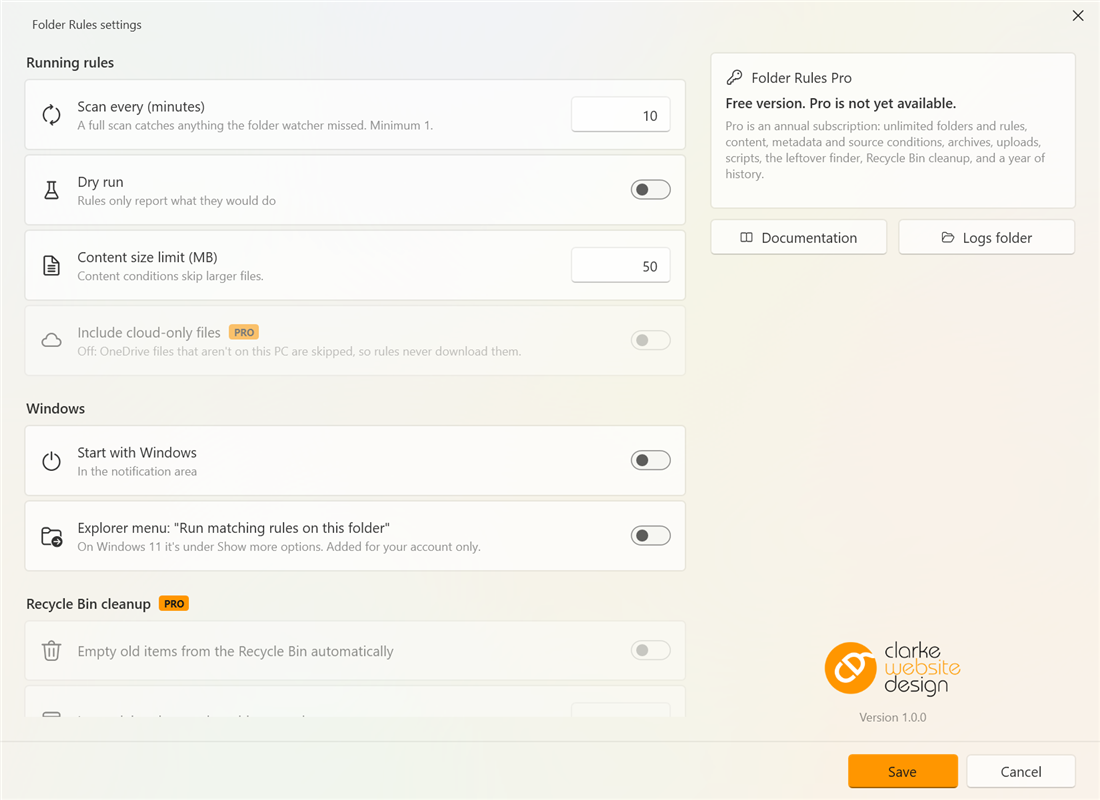
- Folder Rules Pro
- On the right: your licence. Activate a key, start the trial, buy, manage your subscription, or deactivate this PC. See Folder Rules Pro.
- Scan every (minutes)
- How often every folder is checked in full, from 1 minute up. 10 to start with.
- Dry run
- The same as the toolbar switch: rules only record what they would do.
- Content size limit (MB)
- Contents conditions skip files larger than this (50 MB to start with), so huge files don't slow things down.
- Include cloud-only files PRO
- Off to start with. See OneDrive and cloud files.
- Start with Windows
- Starts Folder Rules in the notification area when you sign in.
- Explorer menu
- Adds Run matching rules on this folder to File Explorer, for your account only. See The Explorer menu.
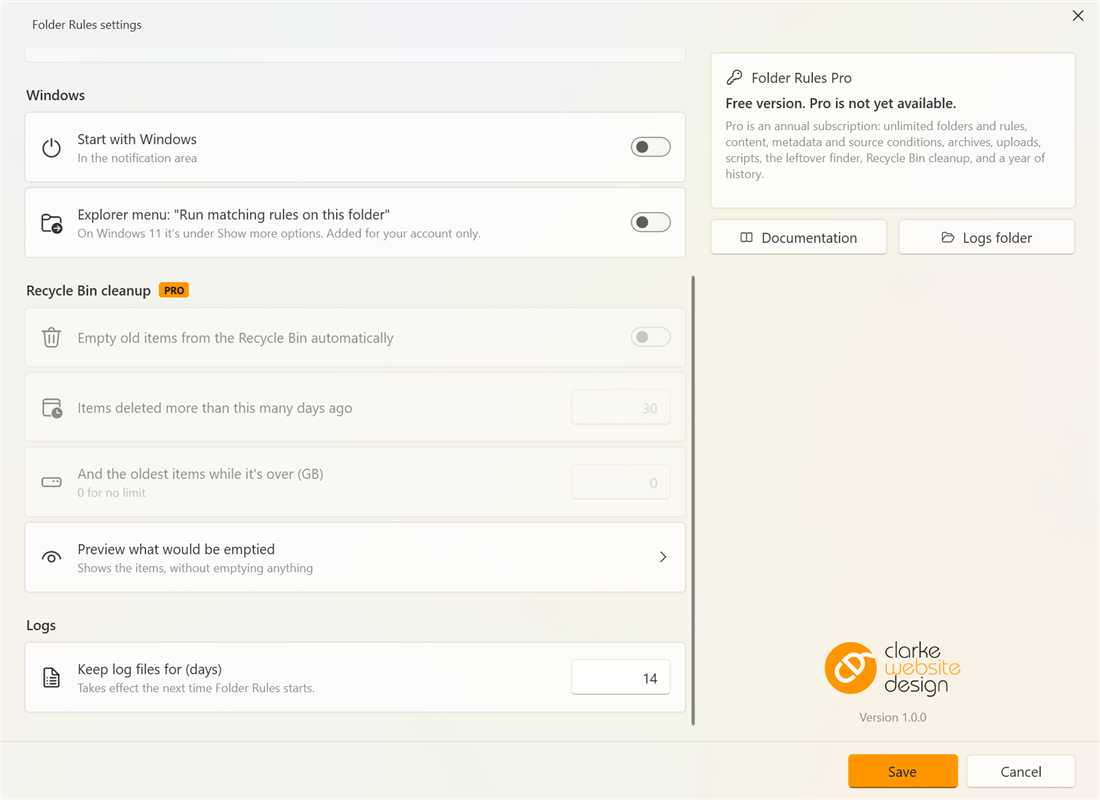
- Recycle Bin cleanup PRO
- Empties old items from the Recycle Bin automatically. See Recycle Bin cleanup.
- Keep log files for (days)
- How long the detailed log files are kept (14 days to start with). Takes effect the next time Folder Rules starts. Logs folder shows them.
- Documentation
- Opens this help.
Settings and Pro
Folder Rules Pro
Pro is an annual subscription. It unlocks every Pro feature on this PC for as long as the subscription is active.
The 14-day trial
The first time you start Folder Rules you're offered a free 14-day Pro trial. You can also start it from Settings > Start 14-day trial. Each PC can have one trial; it ends by itself, nothing is charged, and your rules are kept afterwards.
Buying and activating
- Choose Get Pro in the footer or Buy Pro in Settings, and complete the checkout.
- Copy the licence key from your confirmation email.
- In Settings, paste it into the Licence key box and choose Activate. The footer then shows Pro: subscription active.
Managing your subscription
- Manage subscription opens the customer portal, where you can update your payment details, see invoices, or cancel.
- Deactivate this computer frees the licence so you can use it on another PC. Pro ends on this one straight away.
- Check now confirms the licence with the server immediately, for example after renewing.
Working offline
Folder Rules confirms the subscription online about once a week. If it can't reach the server, Pro keeps working for 7 days after the last successful check, then returns to the free version until the next check succeeds.
If the subscription ends
If your subscription expires, is cancelled or is turned off, Folder Rules returns to the free version. Nothing is deleted: folders and rules beyond the free limits, and rules using Pro features, are kept with a PRO badge and start working again when you renew. If Settings says Pro is not yet available, Pro can't be bought yet; the free version works fully meanwhile.
Settings and Pro
Import and export PRO
- Export saves all your rules, with the folders they use, as a
.jsonfile: a backup, or a way to copy them to another PC. - Import adds the rules from such a file after your existing ones. Folders are matched to your watched folders by path, and added if they're new. Every rule is checked first; any that can't be used are listed and skipped.
- Rules beyond the free limits are marked PRO if Pro later ends.
Settings and Pro
Uploads PRO
The Upload action sends files to a server:
- Protocol: FTP (secure FTPS is used when the server offers it), SFTP, or WebDAV.
- Server: the server's name, such as
ftp.example.com, or for WebDAV the full address, such ashttps://cloud.example.com/remote.php/dav/files/alex. - Port: 0 uses the usual port.
- Remote folder: where the file goes on the server, such as
/uploads/2026. Missing folders are created.
Logins: choose Save login… and enter the user name and password. They're kept in Windows Credential Manager for your account, never in Folder Rules' own files.
For SFTP, the server's identity is remembered the first time you upload. If it ever changes, uploads stop and Run history says so, in case someone is pretending to be your server.
Settings and Pro
Scripts and programs PRO
The Run PowerShell script and Run program actions, and the Passes script condition, run your own code on a file.
- Command: a
.ps1file, PowerShell commands typed straight in, or a program (.exe,.cmd,.bat). - The file is passed as the last argument, and in the environment variable
FOLDERRULES_FILE. Typed-in PowerShell can use$env:FOLDERRULES_FILE. - Arguments: anything to pass before the file; use quotes around anything with spaces.
- Timeout: a script still running after this many seconds is stopped. As an action, that's recorded as a problem; as a condition, it doesn't match.
- An exit code other than 0 is recorded as a problem, with the script's output. For the condition, exit code 0 means the file matches.
Settings and Pro
Leftover finder PRO
Uninstalled apps often leave settings and caches behind. The leftover finder looks for them.
- Choose Leftover finder on the toolbar, then Scan.
- It lists folders in AppData, Local AppData and ProgramData whose names match apps that have been uninstalled, with each folder's size and when it last changed.
- Tick the ones you want to remove and choose Send ticked folders to the Recycle Bin…. You're shown the list and asked to confirm.
Nothing is removed unless you tick it and confirm, and everything goes to the Recycle Bin. Folder Rules learns which apps are installed as it runs, so it finds leftovers of apps uninstalled after it was installed. Folders still used by installed apps, and shared folders such as a publisher's own, are never offered.
Settings and Pro
Recycle Bin cleanup PRO
Folder Rules can empty old items from your Recycle Bin for you. In Settings > Recycle Bin cleanup, set:
- Items deleted more than this many days ago: older items are emptied.
- And the oldest items while it's over this many GB: keeps the Recycle Bin under a size (0 for no limit).
When you turn it on, you first see a preview of exactly what would be emptied, with each item's name, original location, date and size. Cleanup only starts once you accept it, then runs every few hours. Preview what would be emptied… shows the list again at any time, and can empty those items straight away. Emptying the Recycle Bin can't be undone, which is why it always starts with the preview.
Settings and Pro
OneDrive and cloud files
OneDrive and similar services can keep files online only, showing a cloud icon in File Explorer. Opening such a file downloads it.
To save your connection and disc space, Folder Rules skips online-only files, so rules never cause downloads. Files that are on your PC (with a green tick) are handled as normal. If you do want rules to work on online-only files, turn on Include cloud-only files PRO in Settings, knowing that rules which read a file's contents or move it will download it.
Reference
Keyboard and accessibility
| Keys | Where | Does |
|---|---|---|
| F1 | Main window | Open this help |
| F5 | Main window | Run now |
| Ctrl+N | Main window | New rule |
| Ctrl+, | Main window | Settings |
| Enter / Delete | Rule list | Edit or delete the selected rule |
| Enter / Esc | Rule editor, Settings | Save, or cancel |
| Tab, Shift+Tab, Space | Everywhere | Move between controls, and turn switches on or off |
| / | This help | Jump to search |
Every control can be reached with the keyboard and has a name for screen readers such as Narrator. Folder Rules follows your Windows light or dark mode and display scaling.
Reference
Where things are kept
| Folders, rules, settings, history and tags | %LOCALAPPDATA%\FolderRules\rules.db |
|---|---|
| Log files | %LOCALAPPDATA%\FolderRules\logs |
| Pro licence (encrypted for your Windows account) | %LOCALAPPDATA%\FolderRules\licence.dat |
| Upload logins | Windows Credential Manager (names start FolderRules:) |
| The program | %LOCALAPPDATA%\Programs\Folder Rules |
Folder Rules only goes online to check a Pro licence and for uploads you set up. It doesn't send your files, rules or history anywhere. To back up your rules, use Export PRO or copy rules.db while Folder Rules isn't running.
Reference
Known limitations
- Rules are made in the rule editor; there's no plain-English rule creation.
- PDFs are searched by their text layer only: scanned PDFs without text aren't read.
- Word and Excel files (.docx, .xlsx) aren't searched for contents.
- Sync is one-way only.
- Rules don't sync between computers; use Export and Import.
- Unarchive handles .zip files only.
- "Date last opened" relies on Windows updating a file's access time, which it doesn't always do.
- Folder Rules isn't in the Microsoft Store.
Help
Troubleshooting
Most questions are answered by Run history, which says what each rule did and why something failed.
- Does the rule or its folder have a PRO badge? Hover over it to see why it isn't running.
- Are the rule and its folder switched on? Is Pause all on (grey tray icon)?
- Is Dry run on? Then rules only record what they would do.
- Is a rule higher up the list matching the file first? Rules below a match don't see the file.
- Is the file in a subfolder? Rules only look inside subfolders with Include subfolders PRO.
- Is it a folder? Folders need a Type is folder condition.
- Test the rule on the file with Test on a sample file, which shows which condition doesn't match.
- Check the key was copied in full, with no spaces, from your confirmation email.
- "Already active on its maximum number of computers": deactivate it on your other PC (Settings > Deactivate this computer) and try again, or use Manage subscription.
- "Couldn't be reached": check your internet connection. Firewalls must allow
licences.clarkedesign.co.uk.
Help
Contact and support
If something isn't covered here, email web@clarkedesign.co.uk. It helps to include:
- what you expected to happen and what happened instead;
- the rule (a screenshot of the rule editor is ideal);
- the latest log file from Settings > Logs folder.
Folder Rules 1.0.0 is made by Clarke Foundry.