Folder Rules
Windows Utility
Set a rule once, and your folders keep themselves tidy.
Rules that tidy your folders for you. Downloads get sorted, screenshots renamed and old installers cleared out, from the notification area.
Free
Pro coming soon, as an annual subscription
Free for 2 watched folders and 3 active rules, with no time limit. Folder Rules Pro will remove the limits and add more conditions and actions.
- Watches the folders you choose, and runs your rules as files arrive
- Move, copy, rename, sort into subfolders and tag
- Patterns like Documents\{yyyy} to file things by date
- Dry run and test on a file before a rule does anything
- Undo the last run, and nothing is ever deleted for good
For Windows 10 and 11 · folder-rules.zip · 13656 KB
See it in action
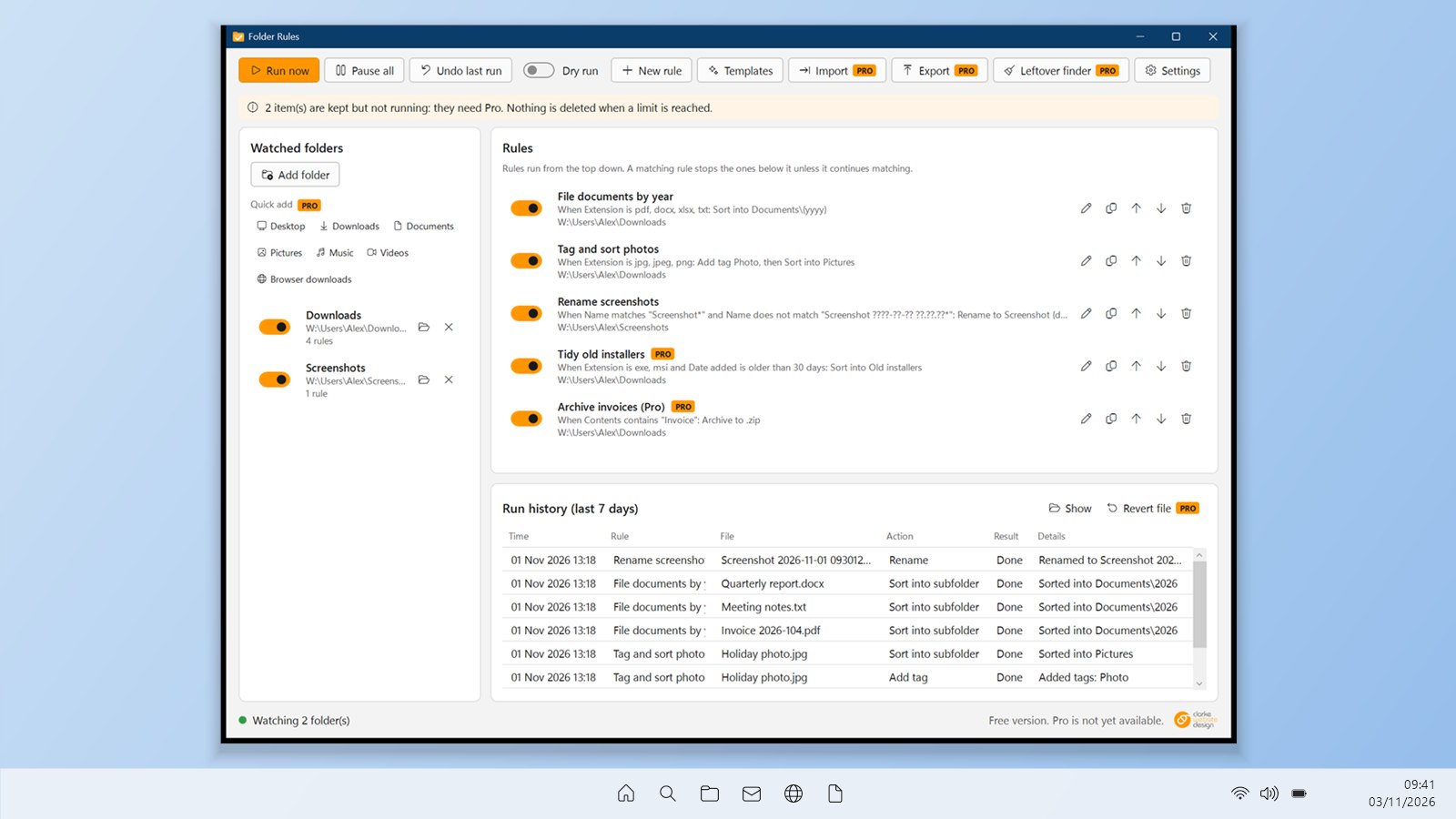
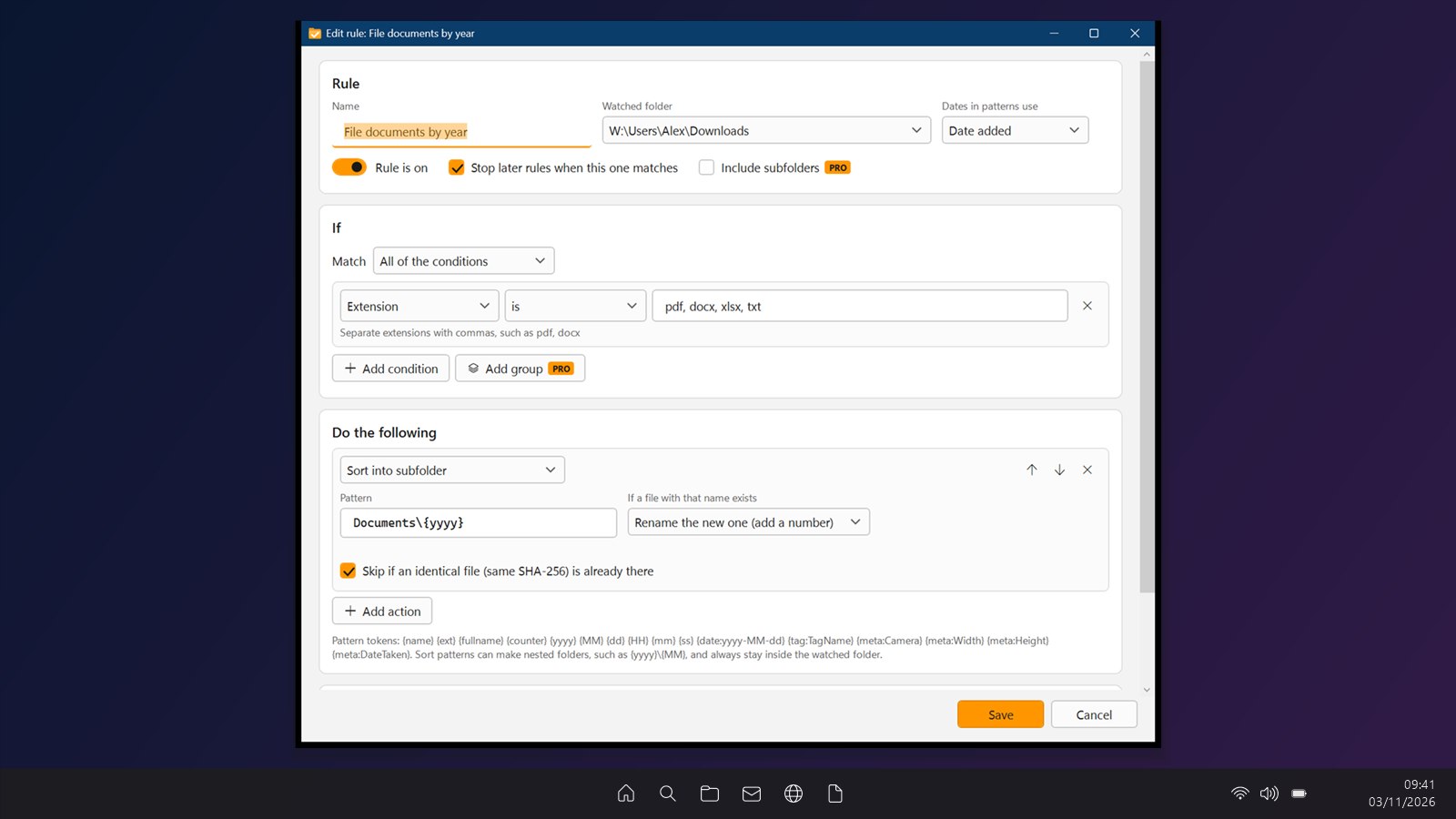
Your folders, sorted while you work
Watches as files arrive
Choose a folder, such as Downloads or Screenshots, and Folder Rules checks each new file against your rules within seconds. A full scan every 10 minutes catches anything it missed, and "older than" rules whose time has come.
If this, then that
Each rule has conditions (name, extension, size, dates or tags) and a list of things to do: move, copy, rename, sort into a subfolder, add a tag or show a notification. Rules run from the top down.
Names and folders from patterns
Sort into Documents\{yyyy}\{MM}, or rename to Screenshot {date:yyyy-MM-dd}. Patterns use the file's dates, name, a counter, its tags and, with Pro, photo details such as the camera.
Nothing lost
Try a rule on a sample file, or turn on dry run to see what would happen without touching anything. Every action is logged, the last run can be undone, and nothing is ever deleted for good: removed files go to the Recycle Bin.
Look inside files Pro
Match the text in documents and PDFs, text read from images, photo details, the website a file was downloaded from, and its kind, with groups of conditions for anything more involved.
Do more with them Pro
Zip files up, unzip them, sync a folder, upload by FTP, SFTP or WebDAV, run a PowerShell script or a program, and keep a year of history with any file put back where it was.
Free or Pro?
| Feature | Free | Pro |
|---|---|---|
| Watched folders | 2 | Unlimited |
| Active rules | 3 | Unlimited |
| Conditions: name, extension, size, dates and tags | Included | Included |
| Move, copy, rename, sort into subfolders, tag and notify | Included | Included |
| Scheduled scans, Run now and dry run | Included | Included |
| Test a rule on a sample file | Included | Included |
| Run history | 7 days, undo the last run | 365 days, revert any file |
| Explorer menu: run matching rules on any folder | Included | Included |
| Pro features | ||
| Pro Contents, photo details, download source and kind | Not included | Included |
| Pro Groups of conditions, and subfolders | Not included | Included |
| Pro Archive, unarchive and sync | Not included | Included |
| Pro Upload by FTP, SFTP or WebDAV | Not included | Included |
| Pro Run a PowerShell script or a program | Not included | Included |
| Pro Import and export rules | Not included | Included |
| Pro Leftover finder and Recycle Bin cleanup | Not included | Included |
| Price | Free | Coming soon |
| Download | ||
Settings
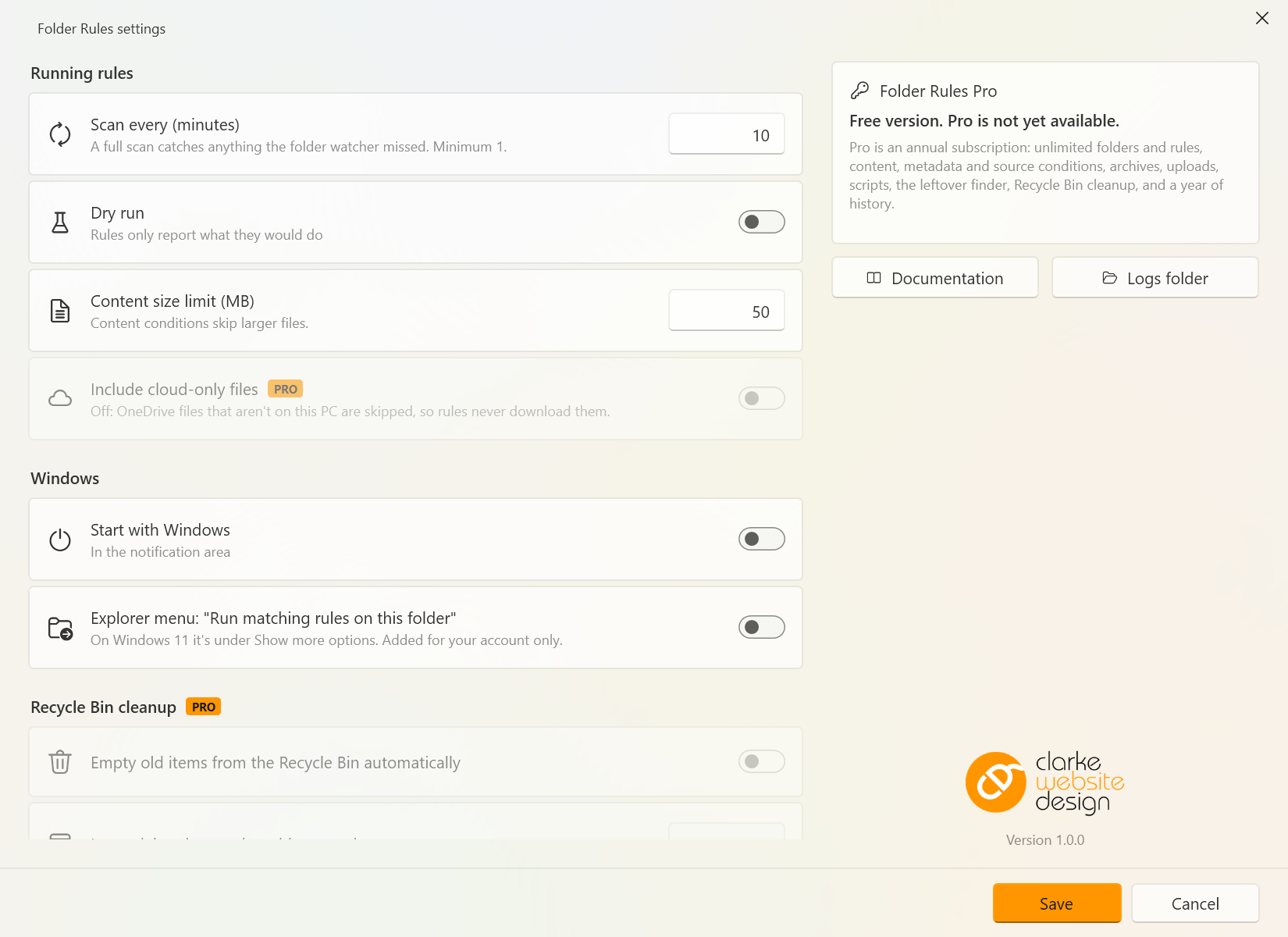
Open the settings from Settings on the toolbar, or press Ctrl+,. Changes apply when you click Save.
| Option | What it does |
|---|---|
| Scan every | How often every folder is checked in full, from 1 minute up. 10 to start with |
| Dry run | Rules only record what they would do, and change nothing |
| Content size limit | Contents conditions skip larger files. 50 MB to start with |
| Start with Windows | Starts Folder Rules in the notification area when you sign in |
| Explorer menu | Adds "Run matching rules on this folder" to File Explorer, for your account only |
| Keep log files for | How many days the detailed log files are kept. 14 to start with |
| Pro Include cloud-only files | Off: OneDrive files that aren't on this PC are skipped, so rules never download them |
| Pro Recycle Bin cleanup | Empties items deleted more than a set number of days ago, and the oldest while it's over a size you choose |
Perfect for
- A Downloads folder that never gets sorted
- Screenshots piling up on the Desktop
- Filing invoices and receipts by year and month
- Photos to sort by date or camera
- Anyone who tidies the same folders by hand every week
Install in three easy steps
- Download the zip, open it, and double-click the Folder Rules setup file inside.
- Choose Install for me only, then Next and Install. If your PC needs Microsoft's .NET 10 Desktop Runtime, setup downloads it and Windows asks for permission.
- Click Finish. Folder Rules opens, ready for you to add a folder and a rule, or start from one of its templates.
Setup adds Folder Rules to the Start menu, and can start it with Windows and add Run matching rules on this folder to File Explorer. You can change both later in its settings.
Frequently asked questions
Ready to try Folder Rules?
It's free, it's small, and it takes a minute to install.
More Windows utilities: Side-Shelf